Gigabyte BRIX PC
Simon Brown • August 13, 2020
Teeny-Tiny PC from Gigabyte
I received an offer from https://mini-itx.com, and as a developer can never have enough computers I bought this and added 8 GB RAM. I put Windows 10 professional on.
The Spec
Gigabyte Brix GB-BLCE-4000C fully assembled PC. The Gigabyte Brix GB-BLCE-4000C features a dual core Celeron CPU, ram up to 8GB Ram. It is a total fanless PC.
Base specification (this is configurable using options)
- Intel Celeron N4000 2.6GHz
- 4GB Ram DDR4
- 500Gb Hard Disk
- Gigabit lan (Realtek RTL8111HS)
- Includes Wireless- Intel® Dual Band Wireless-AC 3168 & Bluetooth
- Intel UHD Graphics 600 onboard, dual display capable with HDMI and VGA outputs.
- Front 1 x Power Button, 1 x USB3.0, 1 x USB3.0 type-C
- 1 x Headphone Jack, 1 x Microphoce Jack
- Rear 1 x HDMI(1.4b), 2 x USB 3.0, 1 x RJ45, 1 x VGA
- Side 1 x Kensington lock slot
- Dimension 56.22 mm x 103 mm x 116.52 mm (2.21″ x 4.06″ x 4.59″)
- Vesa mountable bracket included Supports 75 x 75 and 100 x 100 mm
- 1 year parts and labour warranty
System:
- Don't forget - this is a two core N4000 Celeron chip!
Verdict:
- Hardware build quality is excellent.
- Looks very good.
- I received a 240 GB SSD instead of 120 GB as Gigabyte had run out of 120 GB!
- Plenty of CPU power considering only two cores.
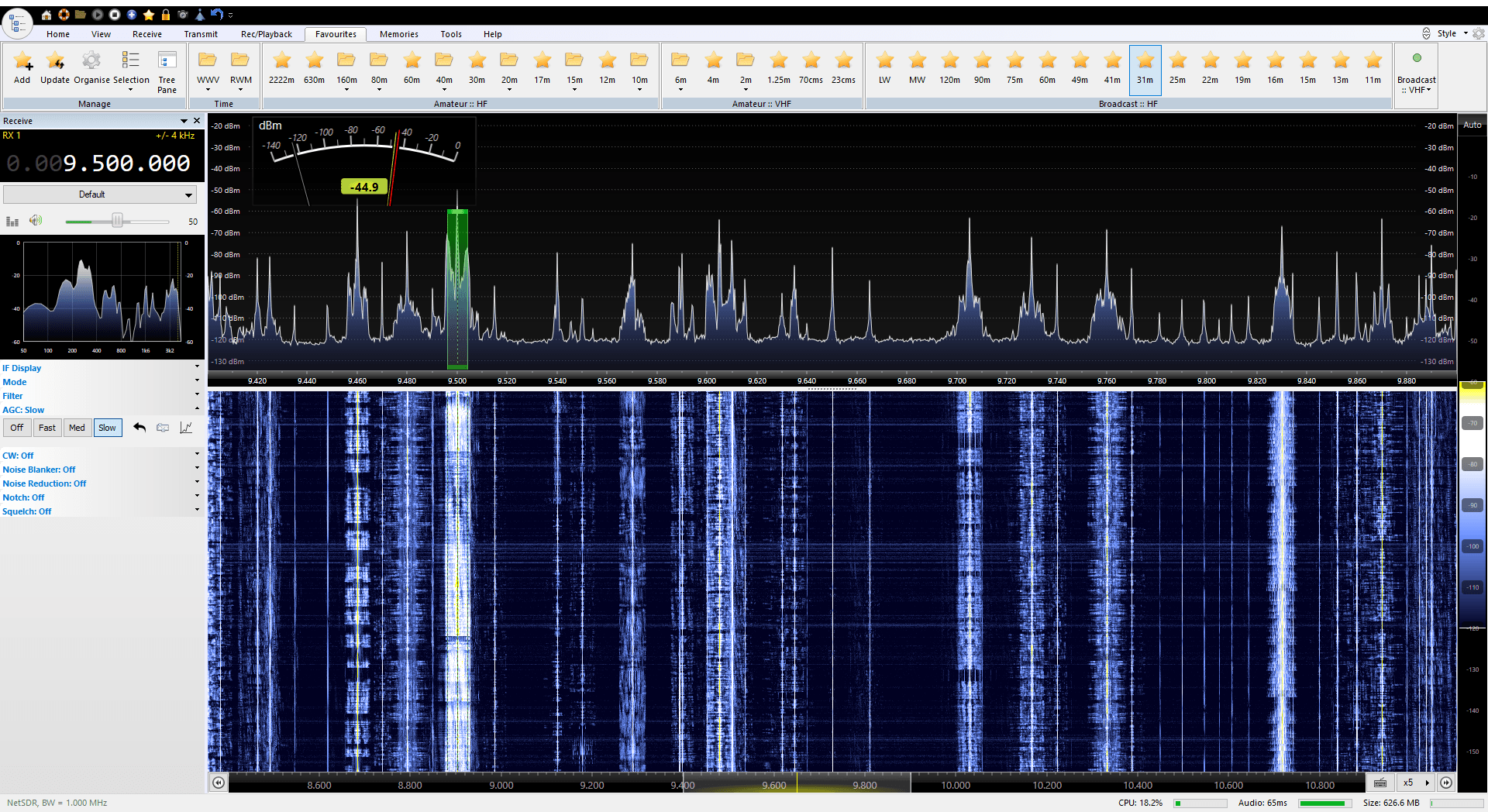
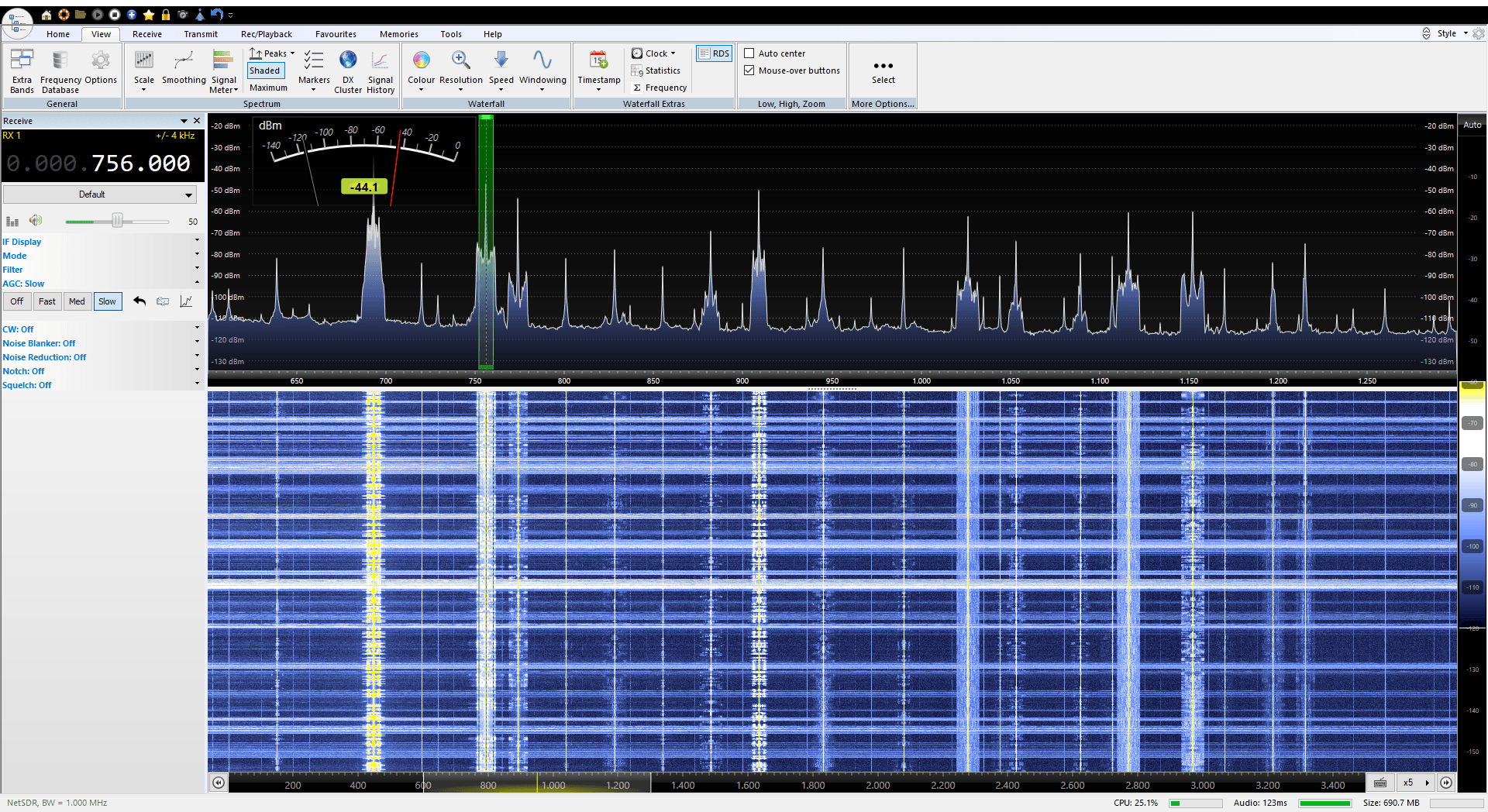
- Runs a NetSDR at 1 MHz bandwidth acceptably, also fine at 2 MHz bandwidth.
- Graphics on a HD monitor is usable but not fantastic.
- Would struggle to run another resource-intensive program such as WSJT.
- Would be fine as a server for one or two SDRs.
Future Use
- This will be used for running the g4eli.sdr-radio.com DX Cluster sometime in 2020.


History

SDR Television v1.1.6 September 14th, 2026. To avoid confusion with the test versions of 1.1.5, this kit is now 1.1.6. Receiver Improved Gardner timing recovery. Improved Sum-product decoding. Redesigned soft decoder. Redesigned RRC matched filter. Note: this kit should be able to gain a dB or so sensitivity when detecting the frame header. v1.1.6 will have even better frame detection, hence better weak signal decoding. LDPS Settings, important! Open this page, select Defaults . There is no need to adjust the Sum-product optons, these options are only for development and may be hidden in future kits. Transmit Provider changed from SDR Television to SDR TV, some receivers only display a maximum of 18 characters in the provider field. Downloads are at the bottom of this page.

Improving DVB-S2 PLHEADER Detection at Low SNR Reliable detection of the DVB-S2 Physical Layer Header (PLHEADER) is one of the first challenges faced by a DVB-S2 receiver. Before the receiver can decode the payload, it must determine where a physical-layer frame begins, establish carrier phase and frequency sufficiently accurately, and decode the signalling contained in the PLS code. This becomes particularly interesting at very low SNR. I have been comparing two approaches: A traditional differential SOF/PLS detector. A new coherent, maximum-likelihood-oriented PLHEADER detector designed to exploit substantially more of the information contained in the DVB-S2 header. Both methods are trying to answer essentially the same question: At what symbol does the DVB-S2 PLHEADER begin, and what carrier frequency and phase best explain the received 90-symbol header? The difference is how much of the available information they use to answer that question. The full PDF is here .

Project for 2027? Love it or hate it, FT-8 is here to stay. I use WSJT-X to monitor 2m and sometimes 70cms. As a software developer, it's always rewarding to use one's own software. So I just asked ChatGPT whether it (he, she, they) even knew about FT-8. The response was amazing. So, this could be the start of a project which is also used for EME and meteor scatter modes. Read on dear reader, read on.

August 27th, 2026 Default Audio Device When changing the default audio device selection in Windows, SDR Console was following the change but not reapplying the latest volume change. Example: I start playback, adjust the volume, then after a while enable my Bluetooth speaker an go outside. When the speaker is enabled SDR Console switches but didn't apply the change in volume. RDS processing AGC replaced with normalisation, Hilbert filter redesigned. Shouldn't make much difference. MIDI Startup I believe I have found the cause of the slow start of SDR Console. As part of the SDR Console startup I always call midiInGetNumDevs() to get the number of attached MIDI devices, even if the user hasn't enabled MIDI. At some stage in 2026 Microsoft introduced a bug where the first call to midiInGetNumDevs() after starting the computer results in blocking all asynchronous activity if there are no MIDI devices connected. If there are MIDI devices connected then it returns after ~100ms. I now only call midiInGetNumDevs() on startup if there are user definitions. Some programs are experiencing even worse behaviour. There should be a Windows update soon with a fix, but for now the kit below should resolve this problem in 99% of cases. Downloads Download beta kits here .

QO-100 Footprints

SDR Television v1.1.4 User Interface Rearranged ribbon bar, added Forward Error Correction (FEC) to the Home panel. Receiver Currently trying to improve LDPC decoding for low SNR. Part of this work involves reducing CPU load in the LDPC decoder. Planning to add advanced decoding in v1.1.5. Changed the list of FEC / LDPC algorithms, removing min-sum and min-sum correction. Optimised offset min-sum algorithm to reduce CPU load. Optimised Bose-Chaudhuri-Hocquenghem (BCH) processing. Added sum-product. Corrected LLR soft scaling for QPSK. Changed default RRC filter length to 12 symbols, previous value of 30 was too long. Updated Feed-Forward AGC with a design from CoPilot. Optimised Gardner TED RRC filter length, now 25 taps. Increased the receive RRC filter rolloff factor by 25% to capture more energy with weak signals. Reset LDPC after 1 second of inactivity. FEC - LDPC There are now two LDPC algorithms, Offset min-sum, and Sum-product. Sum-product is more sensitive than offset min-sum but currently doesn't work at all for FEC rates lower than 1/2 (1/4, 1/3 and 2/5). When sum-product is selected and the rate is lower than 1/2 then offset min-sum is used. The default damping settings for sum-product are shown below. The aim is to work on sum-product with the help of ChatGPT in 2027 to get the maximum possible sensitivity. Downloads are at the bottom of this page.

July 26th, 2026 Reuter RSR200B Added initial support. Fobos Finalised support for Fobos SDR, only the Agile firmware is supported. Some early Fobos SDR units had HF2 and HF1 swapped on the case printing. FFT When using NVIDIA CUDA for the FFT the returned buffers now use memory from the heap rather than pinned memory (*). Reduced the CPU load in the FFT Helper DLL. The data from the FFT (CUDA, IPP, OpenCL) is processed to match the display DIPs. When running Broadcast-FM with x4 resolution there were 550 FFT bins per display pixel (DIP). These 550 bins were averaged which takes quite some processing, especially when running a matrix display with many receivers enabled. I now down-sample the bins to a maximum of (about) 32 which doesn't affect the display or any DSP but does reduce the CPU. Frequency Database Loading of the frequency database into memory-mapped backing now much faster. Pluto TX Doppler support for Pluto / LibreSDR. Have tested this by adding debug info, seems OK 🙂 . RDS Added variable font size in the RDS editor window. Forced uppercase of PS text in the RDS Editor removed. Change to RDS Logfile updates while the editor is open & visible. Updates are now allowed, previously not so. Recordings Fixed font size error in the playback, navigation window (was incorrect logic). When starting the video recorder a sanity check makes sure the selected folder exists and is accessible. Satellite Satellite definition file format has changed, no need to update your settings but support for the new OMM (.xml) format is included. I'm hosting satellite data on my (new) Akamai server, these is currently a cache of the Celestrak data. I'll add a web page soon which explains what's been happening. Transmit Audio mute is now a per-profile setting. Other Fixed an error opening the matrix display while the SDR was already started. Crash when selecting "Configure" from the Select Radio window fixed. Does not create an error when the graphics driver restarts.

SDR Television v1.1.3 User Interface Fixed erroneous cursor flicker in Settings help text and Receive, Transmit panes. Fixed error in the spectrum squelch logic. Minor fix/improvement in QPSK LUT lookup for low values. Receiver Use highest possible quality decimation for symbol rates of 333ksps and lower. Added optional Doppler correction for LEO/MEO satellites such as MARMOTsat (July 2026). This will most probably be tweaked when the DVB-S2 transmissions started. Downloads are at the bottom of this page.